
XP-FlightDeck › X-Plane 12 guides
Use a Tablet or iPad as an X-Plane 12 Controller
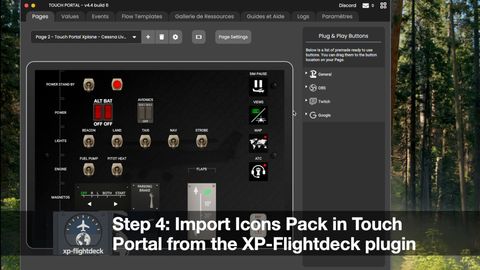
Yes, you can use an iPad, an Android tablet or even a phone as an X-Plane 12 controller. There are two kinds of apps for it: apps that read data from the sim (a moving map, an electronic flight bag) and apps that send commands to it (a touch panel with switches for lights, flaps, engine and brakes). Both talk to X-Plane 12 over your local network, so the tablet and the computer must be on the same Wi-Fi or LAN.
This guide explains the difference, then walks you through setting up a touch control panel with Touch Portal.
What a tablet can do in X-Plane 12
X-Plane exposes two things to the outside world:
- Datarefs hold the state of the simulation: is the gear down, what is the flap position, is the beacon on.
- Commands make something happen: toggle the landing light, extend the flaps one notch, set the parking brake.
Laminar Research, the developer of X-Plane, sums it up simply: only datarefs show you information, while a command takes action to change the sim. When a command exists for what you want to do, Laminar recommends using it rather than writing the dataref directly (X-Plane Developer).
So a tablet app that only reads datarefs can show you things. A tablet app that sends commands can fly the switches for you. The best control panels do both: you tap a tile, the command runs, and the tile lights up when the dataref confirms the new state.
Option 1: a map or flight bag app
Many pilots start with an electronic flight bag on the iPad. ForeFlight, for example, reads your position from X-Plane: in X-Plane, open Settings > Network, expand iPhone & iPad, and tick the box that broadcasts to ForeFlight, then enable the X-Plane device in the app (ForeFlight Support).
This is great for navigation and charts. It does not let you flip switches in the cockpit: for that you need a control app.
Option 2: a touch control panel with Touch Portal
Touch Portal turns a phone or tablet into a grid of buttons that control your computer. It has two parts: a desktop app where you build your pages, and a mobile app that syncs with it and then works on its own.
What the Touch Portal FAQ says you need:
| Supported | |
|---|---|
| Mobile app | iPhone and iPad on iOS 13 or later, Android 5.0 or later with Google Play |
| Desktop app | Windows 10 and 11 (64-bit), macOS 10.13.6 or later, Linux in open beta |
| Connection | Local network (Wi-Fi or Ethernet); USB only between Android and Windows |
| Plug-ins | Require the Pro upgrade |
The last line matters: a flight sim integration is a plug-in, so you need Touch Portal Pro. Pro also removes the page limits of the free version (a 4×2 grid and one extra page) and allows grids of up to 110 buttons (Touch Portal FAQ). On a tablet, that is enough room for a full overhead panel.
Set it up step by step
- Check X-Plane 12. Make sure the sim starts correctly and that you can load a flight.
- Install Touch Portal on the computer and upgrade it to Pro.
- Install the Touch Portal app on the iPad, Android tablet or phone.
- Connect the tablet. Open the mobile app on the same network as the computer. It scans the network and finds the desktop app on its own; if it does not, tap Manually and type the computer's IP address, leaving the port at its default (Touch Portal tutorial).
- Install an X-Plane plug-in for Touch Portal and import its pages.
- Start a flight and tap a tile: the switch should move in the virtual cockpit.
If nothing happens
- Firewall. Touch Portal warns that Windows Firewall or an antivirus can block the connection; allow it (Touch Portal tutorial). The X-Plane 12 manual also lists tablet and mobile app integration among the features that need network access through your firewall (X-Plane 12 Desktop Manual).
- Two networks. A guest Wi-Fi or a VPN on the computer keeps the two devices apart. Put both on the same home network.
- Wrong IP address. If you entered it by hand, check it again on the computer: addresses can change after a router restart.
What XP-FlightDeck adds
XP-FlightDeck is a plug-in that links Touch Portal to X-Plane 12. Once installed, it connects locally to the sim and exposes X-Plane commands and datarefs to Touch Portal, with ready-made pages for common aircraft controls: engine, lighting, brakes, flaps and more (how it works).
- Two-way sync. Tiles show the real state of the cockpit and update when a switch changes in the sim.
- Local only. Everything stays on your network: no cloud, no internet connection needed in flight.
- macOS and Windows. It runs on macOS 12 or later and Windows 10/11, with installers for each system (requirements).
- Free or licensed. The free version gives the core actions; a license unlocks advanced features, has no time limit and covers up to 5 installations.
XP-FlightDeck is an independent plug-in: it is not made by Laminar Research or by Touch Portal.
Ready to try? Download XP-FlightDeck, or read our comparison Stream Deck or tablet for X-Plane 12 if you are still choosing your hardware.